Telegram Bot Shutdown PC: Schedule Restart and Shutdown Commands on Windows (r time / sd time)
If you already control your computer through Telegram, the next step is automation: scheduling a restart or shutdown without touching the PC. A Telegram bot shutdown PC workflow is especially useful when you need to apply Windows updates overnight, reboot a stuck system remotely, or power off a machine you forgot running at home or at the office.
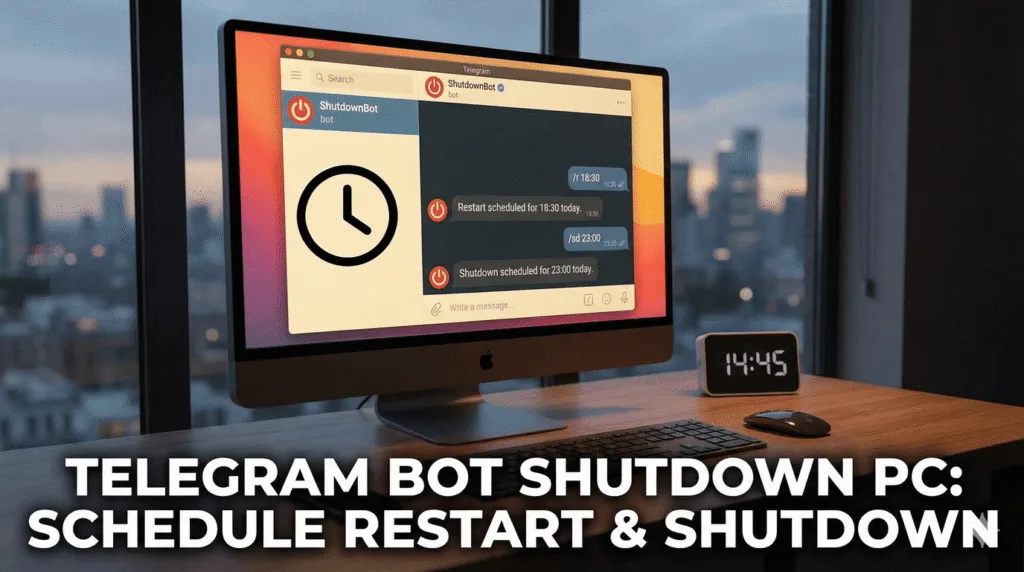
This guide focuses on scheduling power actions on Windows using TG Remote PC commands:
r time in minutes→ schedule a restartsd time in minutes→ schedule a shutdown- stop → Stop scheduled restart or shutdown via Telegram bot

It also complements the broader remote-control setup covered in Fast and Secure Way to Control Your PC via Telegram by going deeper on safe power automation, common mistakes, and security best practices.
Why schedule restart/shutdown via Telegram instead of doing it manually?
Scheduling is more reliable than “do it now” commands when you’re remote and want to avoid disrupting active work. In real use, scheduling helps when:
- Windows Update requires a reboot but you want it after a meeting ends.
- A PC becomes slow/unresponsive and a restart in 5–10 minutes prevents data loss.
- You need a “shutdown in 30 minutes” safety net if you left a PC running.
- You manage a shared PC and want predictable off-hours maintenance.
For a complete overview of Telegram-based PC control (screenshots, app control, permissions, and more), see control your PC via Telegram securely.
Telegram bot shutdown PC scheduling in TG Remote PC
TG Remote PC uses simple, beginner-friendly Telegram commands for power scheduling:
- Restart schedule:
r time in minutes - Shutdown schedule:
sd time in minutes
What “time in minutes” means
The number you provide is a delay from now. For example:
r 10→ restart the PC in 10 minutessd 45→ shut down the PC in 45 minutes
This approach is practical because it works the same way across Windows versions (Windows 10/11) and doesn’t require you to calculate a specific clock time.
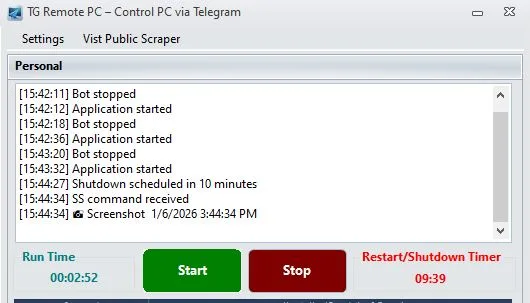
Step-by-step: schedule a restart using r time in minutes
- Open Telegram on your phone (or any device).
- Open the chat with your TG Remote PC bot.
- Send the restart schedule command:
r 5(restart in 5 minutes)
- Keep the PC online and connected.
- When the timer ends, Windows restarts.
Recommended restart timings
- 2–5 minutes: quick recovery for a sluggish PC
- 10–20 minutes: gives time to save work / finish uploads
- 30–60 minutes: maintenance window or end-of-day reboot
Step-by-step: schedule a shutdown using sd time in minutes
- Open your TG Remote PC bot chat in Telegram.
- Send the shutdown schedule command:
sd 15(shutdown in 15 minutes)
- Confirm the PC remains connected until shutdown executes.
- The PC powers off automatically after the delay.
Recommended shutdown timings
- 10–15 minutes: safe buffer to save work
- 30–60 minutes: planned end-of-session shutdown
- 90+ minutes: “shutdown later” after long tasks finish (downloads, backups)
Best practices to avoid data loss and failed shutdowns
Power commands are powerful—treat them like admin actions.
1) Prefer scheduling over immediate power-off
Scheduling gives you time to:
- save documents,
- close apps cleanly,
- avoid corrupting files (especially databases, VMs, or editing projects).
2) Avoid shutdown during critical disk activity
If the PC is:
- installing updates,
- encrypting/decrypting (BitLocker),
- exporting videos,
- copying large files,
use a longer delay or do a restart later.
3) Keep TG Remote PC permissions tight
Only enable system commands for trusted use. In the full guide on Telegram-based PC control, you’ll find permission and security practices that reduce risk: securely control a Windows PC via Telegram bot.
Security and privacy considerations for Telegram power commands
A Telegram bot that can shut down a PC is effectively a remote admin tool. To keep it safe:
- Restrict access: only you (or approved user IDs) should be able to issue commands.
- Use strong Telegram security: enable two-factor authentication in Telegram.
- Treat the bot token like a password: never share it or store it in public code.
- Keep Windows protected: updated OS, firewall enabled, and reputable antivirus.
- Log actions (recommended): store a basic local log of who triggered restart/shutdown and when.
Common failure scenario: a user tests commands on a shared PC and forgets to restrict access, then someone triggers a shutdown. The fix is always the same—limit who can message the bot and who can run system commands.
People Also Ask:
Can a Telegram bot shut down a Windows PC?
Yes. If the bot is connected to an agent/app running on the PC (like TG Remote PC) and system commands are enabled, it can schedule a shutdown using a command such as sd time in minutes. Access control is critical to prevent unauthorized power actions.
How do I schedule a restart with TG Remote PC?
Send r time in minutes in your TG Remote PC Telegram chat. For example, r 10 schedules a restart 10 minutes from now. This delay-based scheduling is easy to use and helps avoid restarting at the wrong time.
Does Telegram bot shutdown work on Windows 10 and Windows 11?
Yes. Shutdown and restart scheduling works on both Windows 10 and Windows 11 as long as the TG Remote PC agent is running with the required permissions. The command format stays the same because it schedules by minutes, not by system UI steps.
What’s the safest delay to use before shutting down remotely?
A 10–15 minute delay is generally safest because it gives time to save work and close apps cleanly. If you suspect background updates or heavy disk activity, choose 30 minutes or more to reduce the risk of file corruption.
Why might a scheduled shutdown not happen?
Most failures happen if the PC goes offline, the TG Remote PC agent is not running, or permissions for system commands are disabled. Ensuring the PC stays connected and the agent starts with Windows improves reliability for scheduled power commands.
FAQ
Q: What command schedules a restart in TG Remote PC?
A: Use r time in minutes. Example: r 5 schedules a restart in 5 minutes.
Q: What command schedules a shutdown in TG Remote PC?
A: Use sd time in minutes. Example: sd 30 schedules a shutdown in 30 minutes.
Q: Can I use these commands to turn off my computer from anywhere?
A: Yes, as long as your PC is online and TG Remote PC is running. The command is sent through Telegram, and the agent executes it locally on Windows.
Q: Is it safe to allow shutdown/restart commands through Telegram?
A: It can be safe if access is restricted to approved users, Telegram 2FA is enabled, and the bot token is protected. Power commands should be treated like admin features.
Q: What should I do before scheduling a shutdown remotely?
A: Save open work, close critical apps if possible, and avoid scheduling shutdown during updates or large file transfers. Use a longer delay (10–30 minutes) to reduce risk.
Conclusion
A Telegram bot shutdown PC setup becomes far more practical when you can schedule power actions instead of triggering them instantly. With TG Remote PC, you can automate restarts using r time in minutes and automate shutdowns using sd time in minutes, giving yourself a safe buffer to finish work and keep systems stable.
For the complete end-to-end guide on Telegram-based remote control (beyond power commands), read Fast and Secure Way to Control Your PC via Telegram and connect this scheduling workflow into your full remote-control setup.
Leave a Reply