Open and Close Apps via Telegram: Remote App Control for Windows PC (Commands + Security)
Being away from your computer doesn’t mean you’re locked out of your workflows. With the right Telegram-to-Windows setup, you can control apps via Telegram to launch programs, close stuck processes, and even automate small routines—without exposing Remote Desktop to the internet.
If you already have (or plan to build) a Telegram-based controller, this guide expands the app-management layer and helps you implement clear, safe commands. It also complements the main walkthrough in Fast and Secure Way to Control Your PC via Telegram by focusing specifically on app control patterns, command design, and security best practices.
Why remote app control through Telegram is useful
Remote app control using Telegram is practical in day-to-day situations, especially for beginners and intermediate users:
- Start a tool you forgot to open (browser, downloader, backup utility)
- Close frozen apps that block a task or consume CPU/RAM
- Trigger “single-purpose” PC actions without full remote access
- Reduce attack surface compared to exposing RDP/VNC publicly (when done correctly)
When combined with the broader approach in the pillar guide—controlling a Windows PC through Telegram securely—app control becomes one of the most valuable “quick actions” you can safely perform.
Core command design for Telegram app control commands
To keep commands beginner-friendly and safe, use a predictable structure and avoid ambiguous syntax.
Command set (simple and reliable)
Use these commands exactly :
- List apps:
app - List apps on the desktop:
app desktop
(Shows apps you can launch and/or currently running apps, depending on your implementation.)- Open an app:
open <path>oropen <number> - Close an app:
close <number>
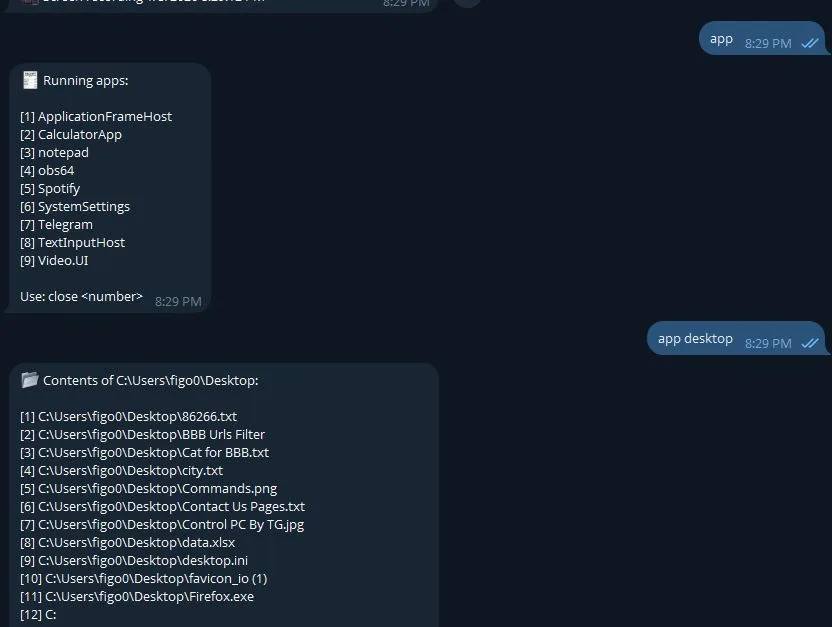
How “app desktop” should behave
app desktop is your discovery command. In most setups, it should return a numbered list like:
- Chrome
- Telegram Desktop
- Notepad
- Your custom app
That numbering is what makes open <number> and close <number> safe and user-friendly. It also prevents typos in long file paths.
H2: How to control apps via Telegram on a Windows PC
This section assumes you already have a Telegram bot and a Windows-side agent (service/script) connected—exactly like the workflow described in the pillar article. If you haven’t set that up yet, start with the secure Telegram PC control method here, then return to this app-control layer.
Step 1: Create an allowlist of apps you permit to launch
For trust and safety, do not allow arbitrary execution by default. Maintain an allowlist mapping names to full paths, for example:
- Chrome →
C:\Program Files\Google\Chrome\Application\chrome.exe - Notepad →
C:\Windows\System32\notepad.exe - Telegram Desktop →
C:\Users\<You>\AppData\Roaming\Telegram Desktop\Telegram.exe
This supports both beginner use (open by number) and advanced use (open by explicit path) while reducing risk.
Step 2: Implement “open” command behavior
Recommended behavior for:
open <number>: launches the app from the allowlist index.open <path>: launches only if the path matches allowlist rules (or is inside a trusted directory you define).

Best practices:
- Return a confirmation message: “Opened Chrome (ID 1).”
- If the app is already running, respond: “Chrome is already running (PID …).”
- Log each open request with timestamp and Telegram user ID.
Step 3: Implement “close” command behavior
close <number> should close by the same numbering shown in app desktop.
Safer close logic:
- Attempt a graceful close first (close window).
- If it’s unresponsive, allow a forced close only after confirmation or a second command (optional).
Example response:
- “Closed Notepad (ID 3).”
- “App not found. Run
app desktopto refresh the list.”
Step 4: Add guardrails (rate limits + authentication)
Even private Telegram bots can be abused if:
- Your bot token leaks
- Someone accesses your Telegram session
- You accidentally accept commands from unknown chats
Minimum controls:
- Restrict by allowed Telegram user IDs
- Restrict by allowed chat IDs
- Add a PIN challenge for sensitive commands (optional but recommended)
- Rate-limit: e.g., max 10 commands per minute
Common mistakes when managing apps through Telegram
- Allowing arbitrary paths: this can become remote code execution if compromised.
- No allowlist: users tend to “just run anything,” which increases risk.
- Closing by app name only: names collide; numbering avoids ambiguity.
- Not logging actions: logs matter for troubleshooting and security audits.
- Running the agent with full admin rights: use the least privileges necessary.
Extending to files: remote file management using Telegram
Many users who automate apps with Telegram also want lightweight file actions (download logs, move outputs, delete temp files). A safe approach is to limit file operations to a dedicated folder, such as:
C:\TelegramRemote\
Suggested Telegram file control commands (keep them minimal):
files→ list files in the allowed directoryget <filename>→ send file back via Telegramdelete <filename>→ delete only inside allowed directorymove <filename> <subfolder>→ move within allowed directory
This supports control files via Telegram and remote file management using Telegram without turning your bot into a full filesystem backdoor.
People Also Ask: concise answers (featured-snippet friendly)
How do I open an app remotely on my Windows PC using Telegram?
Use a Telegram bot connected to a Windows agent that accepts commands. Run app desktop to see a numbered list, then use open 1 (or another number) to launch. For advanced setups, open <path> can work if you restrict it to an allowlist.
How can I close a frozen program via Telegram?
Run app desktop to refresh the numbered list of running apps, then send close <number>. A safe setup tries a normal window close first and only force-kills if needed. This avoids accidental termination of the wrong process and reduces data loss risk.
Is it safe to control apps via Telegram?
It can be safe if you restrict access to your Telegram user ID/chat ID, keep an allowlist of permitted apps, and avoid arbitrary execution. Protect your bot token, log actions, and use least-privilege execution. For a full secure setup, follow the pillar guide’s security model.
What are the best Telegram app control commands to use?
Keep commands short and predictable: app desktop to list, open <number> or open <path> to launch, and close <number> to close. Number-based control reduces typos and ambiguity, while path-based control should be limited to trusted allowlisted locations.
Can Telegram also manage files on my PC?
Yes, but limit scope. Use a dedicated directory (like C:\TelegramRemote\) and support basic actions such as list (files), download (get <filename>), and delete (delete <filename>). Avoid unrestricted file paths to prevent accidental exposure of sensitive data.
FAQ (schema-friendly)
Q: What command shows the list of apps I can manage?
A: Use app desktop to display a numbered list of apps. You can then reference that number with open <number> or close <number>.
Q: How do I open an app by file path?
A: Use open <path>, for example open C:\Windows\System32\notepad.exe. For safety, only allow paths that match an approved allowlist or trusted directory.
Q: How do I close an app using the command number?
A: Run app desktop to get the current numbering, then send close <number>, such as close 3.
Q: Why should I avoid letting Telegram run any command or any path?
A: Allowing arbitrary execution can become a remote code execution risk if your bot token or Telegram session is compromised. An allowlist and access controls reduce damage and prevent misuse.
Q: Can I combine app control and file control in the same bot?
A: Yes. Keep app commands (open/close) separate from file commands (list/get/delete) and restrict file operations to one safe directory to avoid exposing your whole filesystem.
Conclusion
If you want a practical way to control apps via Telegram, the best approach is a simple command set (app desktop, open <path|number>, close <number>) backed by strong guardrails: allowlists, user/chat restrictions, logs, and least-privilege execution. This support article extends the same secure approach described in Fast and Secure Way to Control Your PC via Telegram—so you can launch and close apps confidently while keeping your Windows PC protected.
Leave a Reply