Record Screen via Telegram: Fast PC Screen Video Recording (30 Seconds)
Recording your desktop when you are away from your PC can be surprisingly useful: proving an app error, capturing a quick tutorial for a client, checking what a scheduled task is doing, or verifying that a remote process finished correctly. With record screen via Telegram, you can trigger a short screen recording from your phone and receive the result back in chat, without relying on traditional remote desktop tools.
This guide focuses on Telegram remote screen recording using TG Control PC via Telegram automation (your software workflow), and it directly complements the full setup and control features covered in the pillar guide: Fast and Secure Way to Control Your PC via Telegram.
Why record your PC screen through Telegram?
When you control a PC via Telegram, screenshots are great for quick checks, but video is better when you need context. A 30-second recording can show:
- App behavior over time (loading, crashing, freezing)
- Steps to reproduce a bug
- Progress of a task (rendering, downloading, installing)
- A quick confirmation that the correct window is open and active
For beginners, Telegram screen recording is also easier than configuring remote desktop or screen sharing, because you only send a simple command and receive the video file back in Telegram.
Record screen via Telegram using the rv command (30 seconds)
Your automation keeps the workflow simple:
Command: rv
Result: Starts recording your PC screen for 30 seconds, then sends the video back to Telegram.
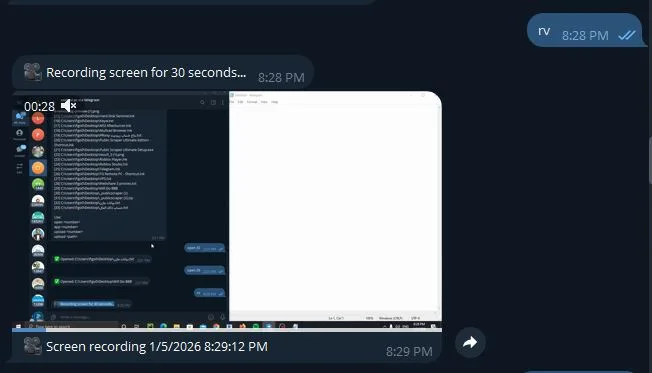
That is it. No extra flags, no complicated parameters, no long setup for the user.
What happens after you send rv?
When you trigger record PC screen via Telegram, the automation typically follows this flow:
- Your PC receives the Telegram command.
- The recorder starts immediately.
- The tool captures the desktop for 30 seconds.
- The recording is saved (usually as an MP4 or similar).
- The file is uploaded back to your Telegram chat.
If you are still setting up your overall Telegram PC control system, follow the main walkthrough first: control your PC via Telegram securely and fast.
Step-by-step: how to record a desktop screen video with Telegram
Step 1: Make sure your PC is online and connected to the bot
Your computer must be running your TG Control PC automation and connected to Telegram. If the PC is asleep, hibernating, or offline, the command will not execute.
Step 2: Open Telegram on your phone
Use the same Telegram account and chat that your automation listens to. This is important for security and for correct routing of commands.
Step 3: Send the command
Send:
rv
Your PC will start recording immediately for 30 seconds.
Step 4: Receive the video file
After recording completes, your automation sends the video back to Telegram. Download it to your phone or forward it to a teammate if needed.
Step 5: Verify the result and repeat if needed
If the recorded window was not visible, repeat the process after you bring the right app to the front (for example, by using your open app or open URL features). For a full set of remote actions, see: Telegram-based Windows PC control features and setup.
Best practices for higher-quality Telegram screen recordings
Choose what you want visible before recording
Since rv records what is on screen, set up the view first:
- Maximize the relevant window
- Close sensitive tabs or chats
- Put the app you want to capture in the foreground
Use a clean desktop profile for remote diagnostics
If you often record for troubleshooting, create a separate Windows user profile or a “clean” desktop layout so recordings are consistent and private.
Keep recordings short and goal-focused
A 30-second clip is ideal for speed and file size. If you need longer coverage, record multiple segments and label them in Telegram messages.
Security and privacy considerations for recording screen via Telegram
Recording your screen remotely is powerful, so treat it like an admin action.
Lock down who can run commands
Use at least one of the following:
- Allowlist your Telegram user ID(s)
- Require a private chat instead of public groups
- Enforce a passphrase or token if your system supports it
Avoid recording sensitive data by mistake
Common risks include:
- Password managers popping up
- Email inbox content visible
- Client information on screen
- Notifications showing private messages
Before using Telegram screen capture, disable lock screen notifications and set Windows Focus Assist where possible.
Store recordings responsibly
If recordings are saved locally before upload, keep them in a controlled folder and auto-delete old files on a schedule. This reduces privacy risk and disk usage.
Common issues and quick fixes
The video is black or blank
Usually caused by GPU capture limitations, protected content, or recording the wrong display. Try switching the target display mode in your recorder settings (if supported) or ensure the desktop is not locked.
The file is too large to send on Telegram
Even 30 seconds can be heavy at high resolution. Reduce bitrate, FPS, or resolution in your recording configuration. If your automation supports it, prefer a balanced preset that is optimized for Telegram transfers.
The recording starts but nothing is returned
Check:
- Your PC is still online after 30 seconds
- The automation has permission to access screen capture
- The output folder is writable
- Telegram file sending limits are not being hit
People Also Ask: record computer screen via Telegram
Can I record my PC screen using Telegram without remote desktop?
Yes. With a Telegram automation that supports screen recording, you can trigger a recording using a simple chat command and receive the video file back in Telegram. This avoids remote desktop sessions and works well for quick diagnostics and proof clips.
What command records a screen video via Telegram in TG Control PC?
Use the command rv. It starts recording your PC screen for 30 seconds and then sends the recorded video back to your Telegram chat. This is designed for fast capture with minimal steps.
Is Telegram remote screen recording secure?
It can be secure if access is restricted to trusted Telegram accounts and your automation validates who can run commands. Use an allowlist, private chats, and optional authentication. Also avoid recording sensitive screens and consider auto-deleting stored recordings.
Why would I use Telegram screen recording instead of screenshots?
Screenshots capture a single moment. Video captures behavior over time, such as loading progress, crashes, popups, or step-by-step reproduction of a bug. A short 30-second video is often the fastest way to explain what is happening remotely.
Does screen recording through Telegram work when the PC is locked?
It depends on how your recorder and Windows permissions are configured. Many setups cannot capture the secure lock screen. For best results, keep the session active and ensure the desktop is accessible, while still protecting the PC with proper account controls.
FAQ
Q: How do I record screen via Telegram with TG Control PC?
A: Send rv in your Telegram chat. It starts recording your PC screen for 30 seconds and returns the video to Telegram automatically.
Q: Can I record the desktop screen with Telegram from anywhere?
A: Yes, as long as your PC is powered on, connected to the internet, and your TG Control PC automation is running and connected to Telegram.
Q: What format is the Telegram screen recording saved as?
A: Most automations save recordings as MP4 or a similar common format. The exact format depends on your recording engine and export settings.
Q: How can I improve video quality for Telegram screen capture?
A: Reduce motion on screen, keep the correct window visible, and tune resolution, FPS, and bitrate to balance clarity with file size.
Q: What is the safest way to use Telegram screen recording?
A: Restrict access to approved Telegram accounts, use private chats, avoid showing sensitive data, and auto-delete old recordings stored on the PC.
Conclusion: fast remote screen video recording via Telegram
If you need quick proof of what your PC is doing while you are away, record screen via Telegram is one of the most practical features you can add to your remote control workflow. With TG Control PC via Telegram automation, the rv command records your screen for 30 seconds and sends the video back to your chat, making troubleshooting, monitoring, and documentation much faster. For the complete remote command set and secure setup, review the main guide: Fast and Secure Way to Control Your PC via Telegram.
Leave a Reply