Fast and Secure Way to Control Your PC via Telegram with TG Remote PC
TG Remote PC provides a fast and secure way to control your PC via Telegram without using traditional remote desktop software. By combining a Telegram bot with a lightweight desktop application, TG Remote PC allows you to manage your computer from anywhere using simple commands while maintaining strong security.

What’s in This Article
- What Is TG Remote PC
- Why Use Telegram to Control Your PC
- How TG Remote PC Works
- How to Create a Telegram Bot Using BotFather
- Adding the Bot Token to TG Remote PC
- Linking Your Chat ID for Better Security
- Understanding Permissions in TG Remote PC
- Controlling Your PC Using Mouse and Keyboard
- Grid-Based Screenshot Control System
- Writing Text and Stopping Control Mode
- Uploading Files from PC to Telegram
- Downloading Files from Telegram to PC
- Recording Screen Video Using Telegram
- Opening URLs in Browser Remotely
- Text-to-Speech with the Say Command
- Restarting or Shutting Down the PC
- Taking Screenshots on Demand
- Opening and Closing Applications
- Security Best Practices
- Final Summary
1. What Is TG Remote PC
TG Remote PC is a Telegram-based remote control software that allows users to control their Windows PC using a Telegram bot. Instead of live screen streaming, TG Remote PC uses screenshots, commands, and automation to provide fast and reliable control even on slow connections.
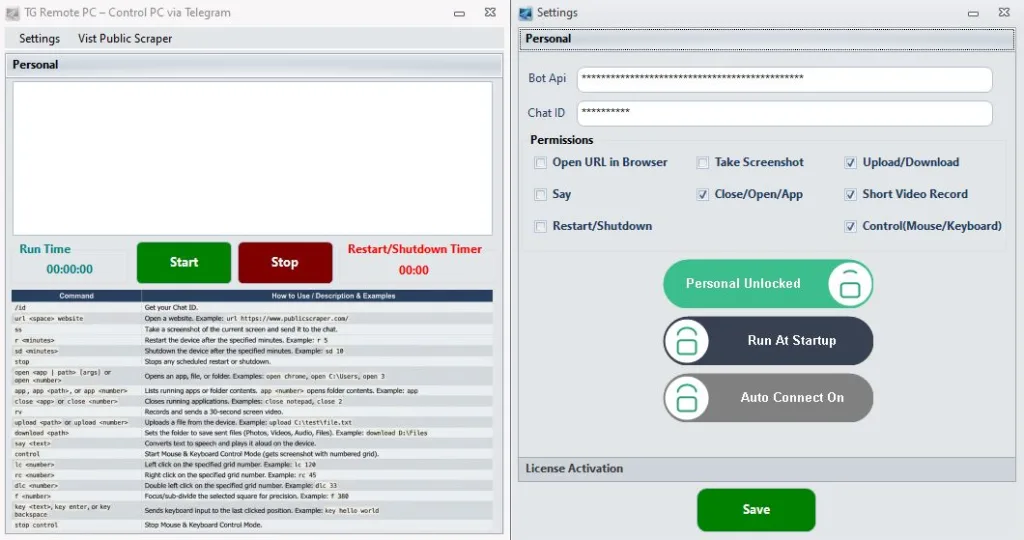
It is ideal for developers, system administrators, freelancers, and anyone who needs lightweight remote access without exposing network ports.
2. Why Use Telegram to Control Your PC
Telegram offers several advantages for remote PC control:
- Encrypted communication
- Works without port forwarding
- No public IP required
- Accessible from mobile and desktop
- Reliable message delivery
By using Telegram as the control channel, TG Remote PC avoids common remote desktop limitations.
3. How TG Remote PC Works
TG Remote PC connects your computer to a Telegram bot using a bot token. Commands sent from Telegram are received by the app and executed locally on your PC. Security is enforced using chat ID verification and permission control.
4. How to Create a Telegram Bot Using BotFather
To control your PC via Telegram, you first need a bot.
Steps
- Open Telegram
- Search for BotFather
- Start the chat and type
/newbot - Choose a bot name
- Choose a username that ends with
_bot - Copy the bot token provided by BotFather
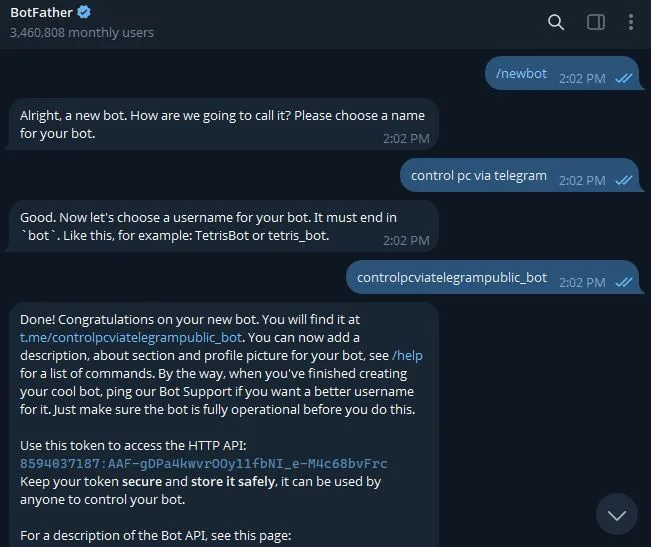
This token is required to connect TG Remote PC with Telegram.
5. Adding the Bot Token to TG Remote PC
- Open TG Remote PC on your computer
- Go to Settings
- Paste the Telegram bot token into the API Token field
- Click Save
- Click Start

The bot is now connected to your PC.
6. Linking Your Chat ID for Better Security
To prevent unauthorized access, TG Remote PC uses chat ID verification.
How to get your chat ID
- After clicking on Start on TG Remote PC
- Open your bot in Telegram
- Press Start
- Send
/id - Copy the chat ID returned by the bot
Paste this chat ID into TG Remote PC settings and save.
Only this chat will be allowed to control the PC.
7. Understanding Permissions in TG Remote PC
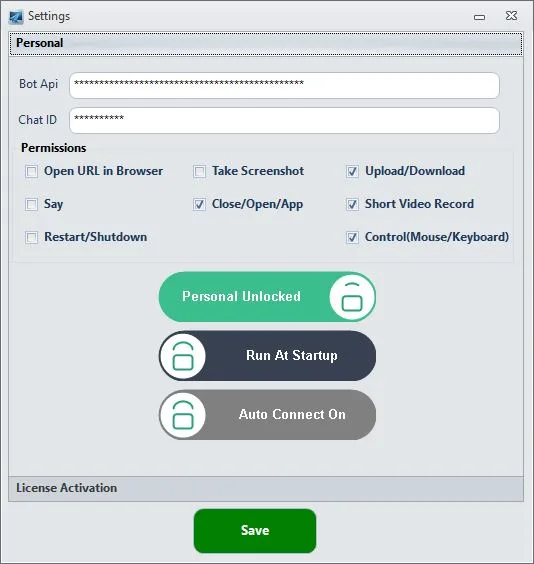
TG Remote PC allows you to enable or disable permissions such as:
- Open URL in Browser
- Take Screenshot
- Upload / Download
- Say
- Restart / Shutdown
- Close / Open / App
- Short Video Record
- Control (Mouse / Keyboard)
Always enable only what you need to increase security.
8. Controlling Your PC Using Mouse and Keyboard
To start remote control, send:
controlTG Remote PC takes a screenshot and divides it into numbered squares called مربعات.
9. Grid-Based Screenshot Control System
Each screenshot is split into numbered sections for precision control.
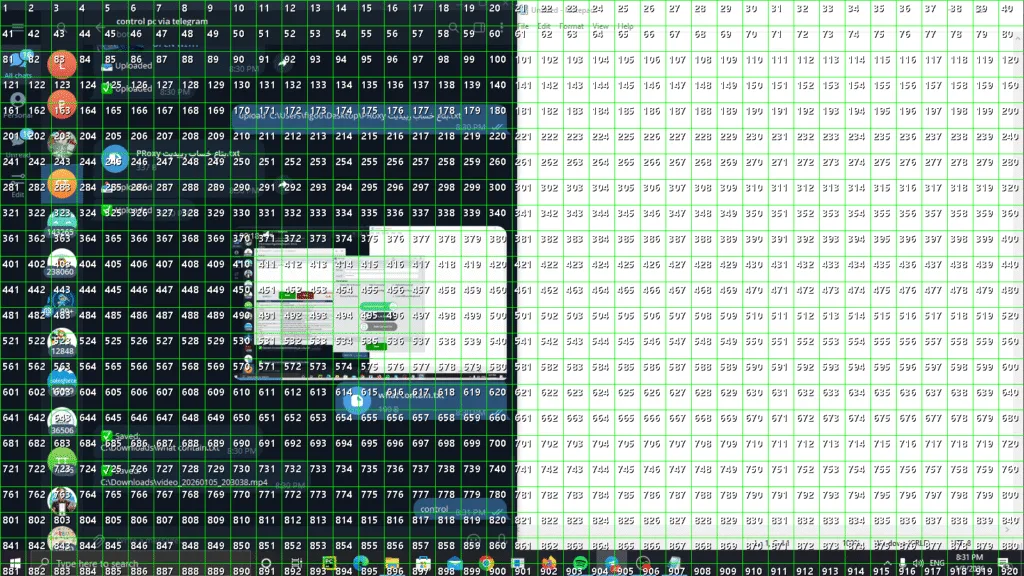
Mouse commands
- Left click
lc number - Right click
rc number - Double left click
dlc number
Split a square into four smaller squares
F number
This makes control easier and more accurate.
10. Writing Text and Stopping Control Mode
Keyboard input
key your text hereStop control mode
stop control11. Uploading Files from PC to Telegram
You can upload files using a path or file number.
Example:
upload C:\Users\PC\Desktop\file.zip
upload 23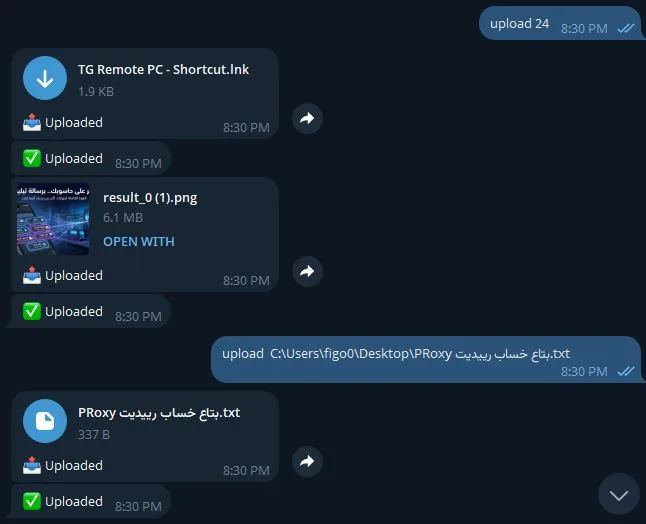
The file will be sent directly to Telegram.
12. Downloading Files from Telegram to PC
Any file sent to the bot is automatically downloaded.
Default path
C:\DownloadsChange download path
download path D:\MyFiles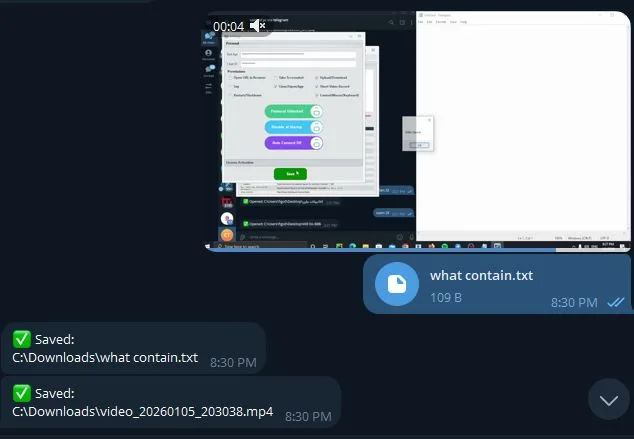
13. Recording Screen Video Using Telegram
To record the screen for 30 seconds:
rv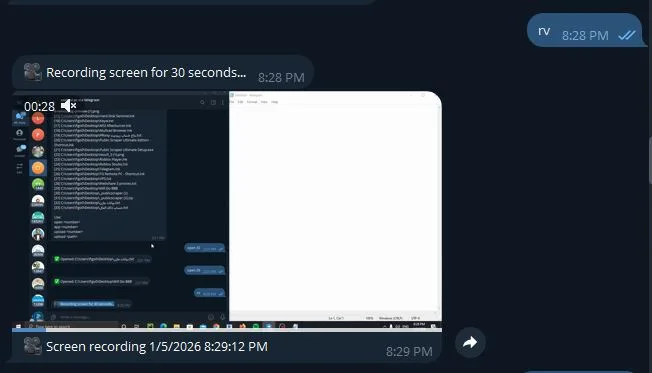
The video is sent automatically to Telegram.
14. Opening URLs in Browser Remotely
Open any website using:
url publicscraper.com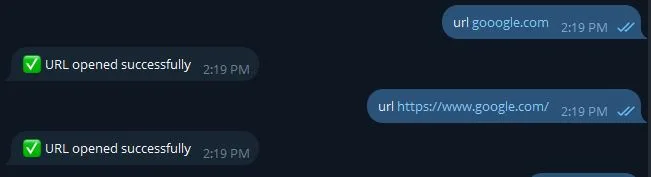
The link opens in the default browser on your PC.
15. Text-to-Speech with the Say Command
Convert text to speech using:
say your text here
The system speaks the text and logs the action.
16. Restarting or Shutting Down the PC
Schedule restart
r minutes
r 10
Schedule shutdown
sd minutes
sd 10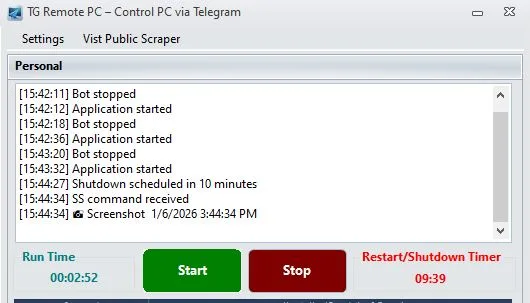
Cancel
stop17. Taking Screenshots on Demand
Capture the screen instantly using:
ss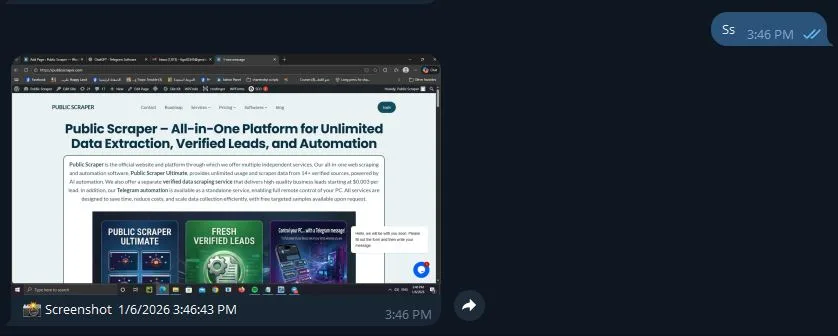
18. Opening and Closing Applications
Get app list
appDesktop apps
app desktop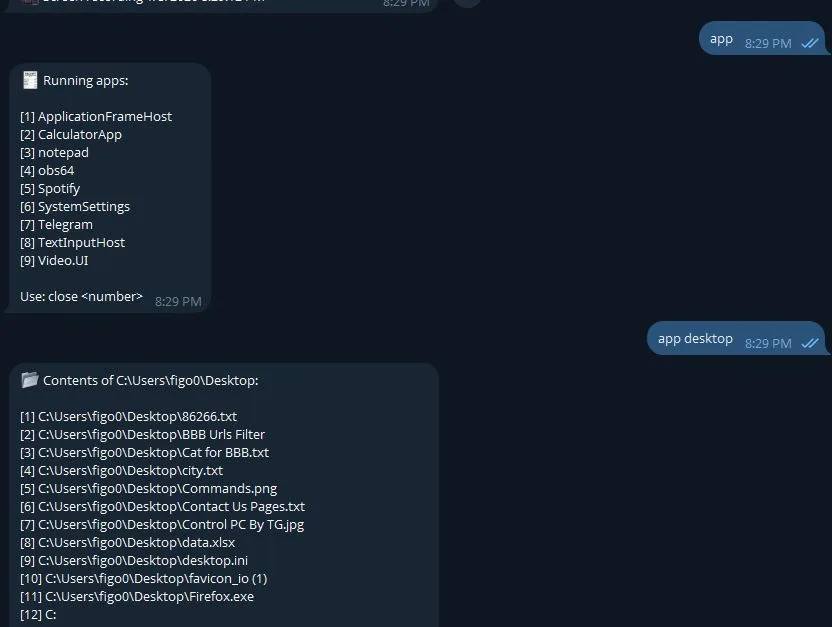
Open app by path or number
open 3or
open C:\Program Files\App\app.exe
19. Security Best Practices
- Never share your bot token
- Always use chat ID restriction
- Disable unused permissions
- Secure your Telegram account
- Monitor logs regularly
20. Final Summary
TG Remote PC offers a reliable and secure way to control PC via Telegram using simple commands instead of heavy remote desktop software. With features like grid-based mouse control, file transfer, screen recording, and system automation, it provides full remote access while remaining lightweight and secure.