How to Control a Windows PC via Telegram Bot (Step-by-Step Guide)
Remote access to a Windows PC does not need to be complex. In fact, you can control a Windows PC via Telegram bot using simple commands. As a result, there is no need for heavy remote desktop software or complicated network settings.
With Telegram, messages turn into secure commands. Because of this, managing your computer from anywhere becomes much easier. At the same time, you can use your phone without installing extra tools. In this guide, the process is explained step by step using clear language and real examples.
For a deeper understanding, you should also read the article here:
Fast and Secure Way to Control Your PC via Telegram
What does it mean to control a Windows PC via Telegram bot?
In simple terms, Telegram messages can trigger actions on your computer. To make this work, a small Windows application runs quietly in the background. Meanwhile, it listens for commands sent through the Telegram bot. Once a command arrives, the action runs locally on the PC.
For example, common actions include:
- Taking a screenshot
- Opening or closing applications
- Controlling mouse and keyboard
- Uploading or downloading files
- Restarting or shutting down the system
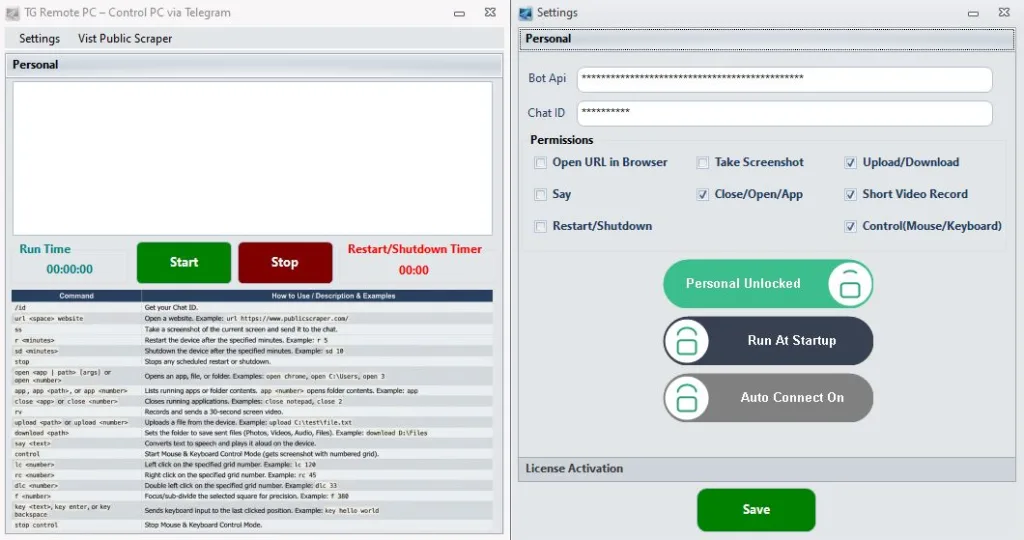
Because of this design, many users treat Telegram as a remote desktop alternative. Instead of live screen sharing, the focus stays on speed and automation.
Why use Telegram for remote Windows control?
Telegram offers several advantages compared to classic remote desktop tools. Most importantly, it removes network complexity. Therefore, setup becomes faster and easier.
Key benefits
- First, no port forwarding is required
- Second, no public IP address is needed
- In addition, it works behind firewalls and NAT
- As a result, commands stay fast and lightweight
- Finally, access works from any device with Telegram
Moreover, Telegram already includes encryption and user identity control. Because of this, it is a practical choice for remote Windows management via Telegram.
For comparison and security details, see the main guide here:
Telegram-based PC control and security overview
Step-by-step: How to control a Windows PC via Telegram bot
Step 1: Create your Telegram bot
First, open Telegram and search for @BotFather.
Then, send the command /newbot.
After that:
- Choose a bot name
- Select a username
- Copy the bot token
This token is important, because it allows the Windows application to communicate with Telegram securely.
Step 2: Install a Windows Telegram control client
Next, install a Windows application that connects your PC to the bot. Once installed, this client runs in the background and waits for commands.
Typically, the client can:
- Authenticate using the bot token
- Receive messages from Telegram
- Execute Windows actions safely
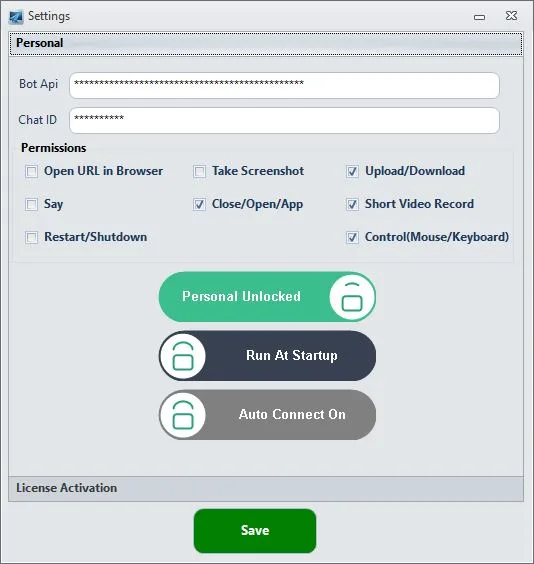
At this stage, always use trusted software. In addition, keep the client updated to reduce security risks.
Step 3: Secure access to your bot
Security is critical, so access must be limited. For this reason, only approved users should be allowed.
Best practices include:
- Whitelisting your Telegram user ID
- Blocking all unknown users
- Disabling unused permissions
By following these steps, unauthorized access becomes far less likely.
Step 4: Test basic remote commands
Before moving forward, test simple commands first. This step is important, because it confirms that the setup works correctly.
Start with:
- Screenshot capture
- Opening a website
- Launching an application
If these commands succeed, the setup is correct. Afterward, mouse, keyboard, and file transfer features can be enabled safely.
Step 5: Enable automation features (optional)
Once the system works reliably, automation becomes the main advantage. At this point, Telegram shows its real power.
For instance, you can:
- Restart the PC on a schedule
- Shut down the system remotely
- Auto-connect when Windows starts
- Run routine tasks with one command
Because of this flexibility, many users prefer Telegram for automation rather than full remote desktop control.
Real-world use cases
In practice, controlling Windows via Telegram fits many daily situations.
For example:
- Accessing a file while away from home
- Restarting a frozen PC remotely
- Checking progress using a screenshot
- Managing a Windows PC while traveling
- Choosing automation instead of live screen access
In these cases, remote control Windows PC using Telegram is often faster and more reliable than traditional tools.
Security and privacy best practices
Remote access always requires caution. However, Telegram-based control can remain safe when configured correctly.
To stay secure, follow these rules:
- Allow only one approved Telegram user
- Disable dangerous commands when not needed
- Avoid running the client as Administrator
- Keep Windows Firewall and Defender enabled
- Protect configuration files whenever possible
For deeper security reasoning, refer again to the article:
complete guide to controlling a PC via Telegram
Common mistakes to avoid
Many issues come from simple mistakes. Fortunately, most of them are easy to avoid.
Do not:
- Leave the bot open to everyone
- Enable all permissions by default
- Use unknown scripts or tools
- Share one bot with multiple people
Instead, keep the setup minimal and controlled at all times.
People Also Ask
Can I control my Windows PC using Telegram without remote desktop?
Yes. In this case, Telegram bots trigger commands directly on Windows. As a result, screenshots, app control, and automation work without opening a full remote desktop session.
Is controlling a PC via Telegram secure?
It is secure when access is restricted and permissions are limited. Most risks, however, come from poor configuration rather than Telegram itself.
What actions can a Telegram bot control on Windows?
A bot can manage applications, screenshots, files, mouse and keyboard input, and system power commands. However, this depends on the client used.
Does Telegram PC control work behind firewalls?
Yes. Because the connection is outbound, it often works even when firewalls block inbound remote desktop connections.
FAQ
Q: Do I need a public IP to control Windows via Telegram?
A: No. Instead, Telegram relies on outbound encrypted connections, so no public IP or port forwarding is required.
Q: Can I control my Windows computer from my phone?
A: Yes. As long as Telegram is installed, any phone can send commands to manage a Windows PC remotely.
Q: Is this method suitable for beginners?
A: Yes. In most cases, setup is simple and does not require networking knowledge.
Q: Can I automate Windows tasks using a Telegram bot?
A: Yes. Because automation is supported, scheduling and command-based workflows are common features.
Conclusion
Overall, if you want a simple and secure way to control a Windows PC via Telegram bot, this approach is a strong option. Not only does it avoid complex network setup, but it also focuses on fast and practical control.
When configured correctly, Telegram becomes a powerful tool for remote management and automation. Finally, for advanced concepts and full explanations.
Leave a Reply