Open URL on PC via Telegram: Remote Website Launch on Windows (Step-by-Step)
If you’ve ever needed to open a specific webpage on your home or work computer while you’re away—like a dashboard, a download link, a support portal, or a document URL—being able to open URL on PC via Telegram is one of the fastest “small automation” wins. Instead of calling someone near the PC, using remote desktop, or trying to sync links across devices, you can send a single Telegram command and have your Windows PC launch the website instantly.
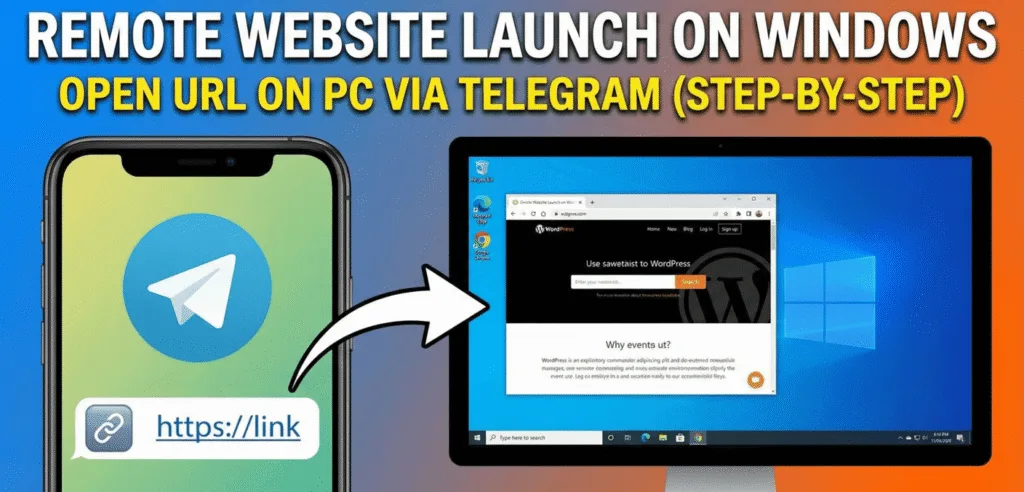
This guide focuses on remote URL launch on Windows and shows practical, safe ways to use it as part of broader Telegram-based PC control. For the full system and wider feature set (apps, screenshots, system actions, automation), see the pillar guide: Fast and secure way to control your PC via Telegram.
Why opening a website remotely matters (and when it’s actually useful)
Remote URL launching sounds simple, but it solves real problems:
- Start a download on your PC while you’re on mobile data and want it ready later.
- Open a work web tool (ticketing system, CRM, monitoring page) before you arrive.
- Launch a streaming or meeting link on a PC connected to a TV or conference screen.
- Trigger web-based local dashboards (NAS page, router UI, local services) that only your PC can access.
Because it’s Telegram-based, you can do it from anywhere without juggling browser sync, emails-to-self, or remote desktop sessions.
How remote URL launch fits into Telegram PC control
Opening a link is typically one command inside a larger “control PC via Telegram” setup:
- Telegram bot receives your message
- Your Windows client app reads it securely
- The app validates the command (permissions/allowlist)
- Windows opens the URL in your default browser (or a configured browser)
If you haven’t set up your Telegram-to-PC control system yet, follow the complete guide to controlling a PC via Telegram securely first, then come back here for URL-specific best practices.
How to open a URL from Telegram on your PC (TG Remote PC command)
Your tool’s syntax is:
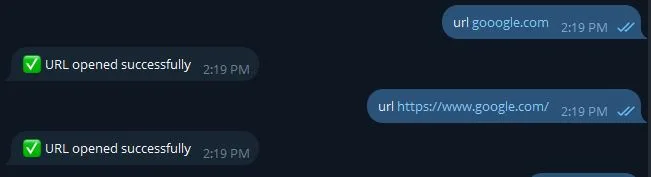
url <URL>
Examples
url publicscraper.comurl https://publicscraper.com/control-pc-via-telegram/url https://example.com/login
Best practice: always include https:// for non-trivial links
While domains like publicscraper.com may work, using the full format reduces ambiguity and avoids Windows treating it as a search query.
Step-by-step: Open any website on your PC from Telegram (Windows)
Step 1) Confirm URL launch permission is enabled
In your PC client/software settings, ensure the feature for opening URLs is allowed. If your tool supports granular permissions, enable only what you need (for example: URL launch ON, but keep file transfer OFF until needed).
Step 2) Use a clean, test URL first
Start with a simple site to verify the pipeline:
url https://example.com
If that opens successfully on the PC, move to longer links.
Step 3) Send the URL command exactly as one line
Avoid extra punctuation or line breaks. Good:
url https://publicscraper.com
Risky (can break parsing in some bots/tools):
url https://publicscraper.com please open this
Step 4) Test long links (tracking parameters, redirects)
If you’re opening long URLs (Google Docs, Microsoft Share links, Stripe, etc.), paste the full link after url. If your tool has a maximum command length, shorten the link using your own trusted shortener—or better, store “safe links” as presets (see below).
Step 5) Confirm the result (optional but recommended)
If your system supports command feedback (for example, “URL opened successfully”), keep this option enabled to confirm execution. If confirmation messages are not available, you can verify the result by using the ss command to take a screenshot and ensure the website opened correctly on your PC.
Command example:
ss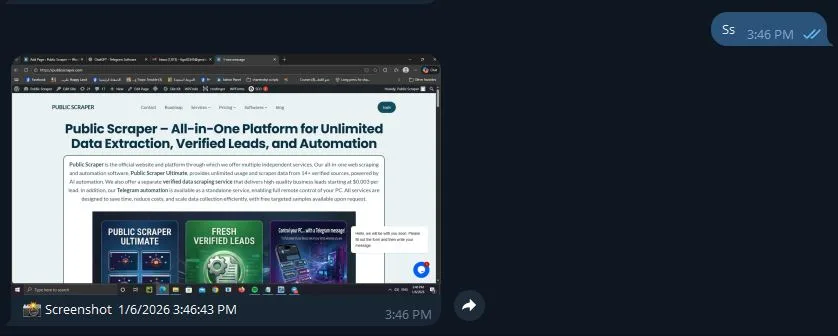
This approach helps confirm successful execution without requiring remote desktop access.
Security and privacy: how to open links safely from Telegram
Opening websites remotely is powerful—but it can also be abused if someone else can send commands.
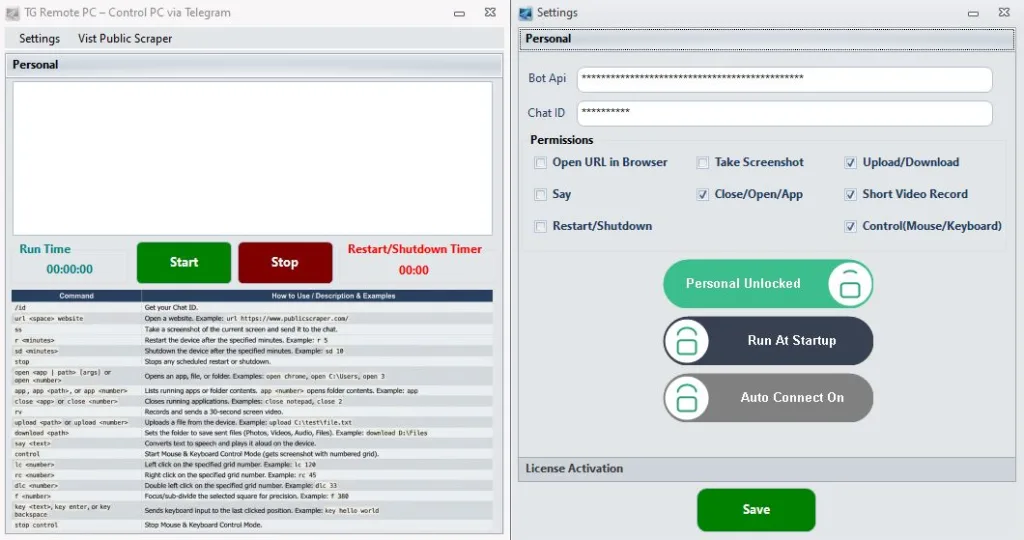
Use an allowlist (recommended)
Only allow:
- Your Telegram user ID (and optionally one backup admin account)
- Specific domains (example:
publicscraper.com,docs.google.com, your company domain)
This reduces risk from accidental or malicious URL opening.
Block dangerous URL types and patterns
If your tool supports filtering, block:
file://URLs- Local execution patterns
- Suspicious URL shorteners (unless you control them)
- Unexpected TLDs or lookalike domains
Turn on confirmations for “external” domains
A simple rule:
- Auto-open allowlisted domains
- Ask for confirmation if the domain is new
Keep logs
A small command log (timestamp + sender + URL domain) improves troubleshooting and trust.
Common mistakes that prevent Telegram from opening a URL on Windows
- Missing permission: URL launch disabled in the PC client.
- Wrong syntax: forgetting the space after
urlor adding extra characters. - No default browser: Windows has no default app set for HTTP/HTTPS.
- URL formatting issues: unescaped spaces or partial links.
- Security block: allowlist rejects the domain (by design).
People Also Ask:
How do I open a link on my PC using Telegram?
Send a Telegram command that your Windows client recognizes, such as url https://example.com. The PC app receives the message, validates permissions, then launches the site in your default browser. For a complete setup, follow the guide to control your PC via Telegram securely.
Can Telegram Desktop open a URL on my computer automatically?
Telegram Desktop can open links when you click them, but automatic opening requires a PC-side tool that listens for bot commands and triggers browser actions. With the right setup, one command can open a webpage on your Windows PC without remote desktop.
Is it safe to open websites remotely from Telegram?
It can be safe if you restrict access by Telegram user ID, enable domain allowlisting, and log actions. Avoid letting unknown users issue commands, and block risky URL types like file://. Use confirmations for new domains to prevent misuse.
Why isn’t my PC opening the URL when I send the command?
Most failures come from disabled permissions, incorrect command formatting (url <link>), or Windows lacking a default browser. If your tool uses an allowlist, the domain may be blocked. Test with url https://example.com to isolate formatting issues.
What’s the best way to open long URLs (Google Docs, meeting links) via Telegram?
Paste the full URL after url, making sure it stays on a single line. If your system limits message length, use trusted short links you control or store “preset links” in your tool (for example, urlpreset meeting → opens a saved URL).
FAQ
Q: What command do I use to open URL on PC via Telegram?
A: Use url <URL>, for example: url https://publicscraper.com.
Q: Can I open a website from Telegram on PC without Remote Desktop?
A: Yes. A Telegram-to-PC control tool can receive a command and open the URL directly in Windows, without a remote desktop session.
Q: Can I restrict which websites can be opened?
A: Yes. Use an allowlist approach: permit only trusted Telegram user IDs and approved domains, and block unknown or risky URL patterns.
Q: Will the URL open in Chrome or my default browser?
A: Typically it opens in the Windows default browser. Some tools let you configure a specific browser path, but default browser behavior is the most common.
Q: Does this work if my PC is locked?
A: It depends on the tool’s design and Windows settings. Some setups can launch URLs in the background; others require an active user session. Test with your lock-screen scenario and keep security settings strict.
Conclusion
Being able to open URL on PC via Telegram is a practical feature that saves time and removes friction—especially when you only need to launch a webpage, not fully remote-control the desktop. Use the url <URL> command, keep permissions tight with allowlists, and add confirmations for unfamiliar domains. For the full context and additional Telegram-based automation features, read the complete control PC via Telegram guide.
Leave a Reply