Take a PC Screenshot from Telegram: Instant Screen Capture on Windows (screenshot PC via Telegram)
If you have ever needed to quickly see what is happening on your Windows PC while you are away from it, being able to screenshot PC via Telegram is one of the fastest ways to confirm status, troubleshoot an issue, or verify that a task finished successfully. Instead of opening a full remote desktop session, you can request an instant screen capture from a Telegram chat and get a current screenshot in seconds.
This guide focuses on taking screenshots from Telegram using TG Control PC via Telegram, including the ss command, practical setup tips, and security best practices. If you want the full system for remote PC control (commands, access model, safety guidance, and overall workflow), read the pillar guide: fast and secure way to control your PC via Telegram.
Why take a screenshot PC via Telegram instead of using Remote Desktop?
A screenshot is lightweight, fast, and often all you need. Real-world scenarios where Telegram screen capture is useful:
- Confirm downloads or installs finished without logging in remotely
- Check a stuck window (update prompt, crash dialog, login screen)
- Verify automation results (rendering, scraping, backups)
- Support family or teammates by seeing the current desktop state
- Monitor a headless or unattended PC using a simple command
Compared to Remote Desktop, you avoid long sessions, bandwidth overhead, and extra exposure. You also reduce risk by requesting only what you need: a single image.
How screenshot capture works in TG Control PC via Telegram
With TG Control PC via Telegram, your Windows machine runs a small local component that listens for Telegram commands from an authorized chat. When you send the command:
ss
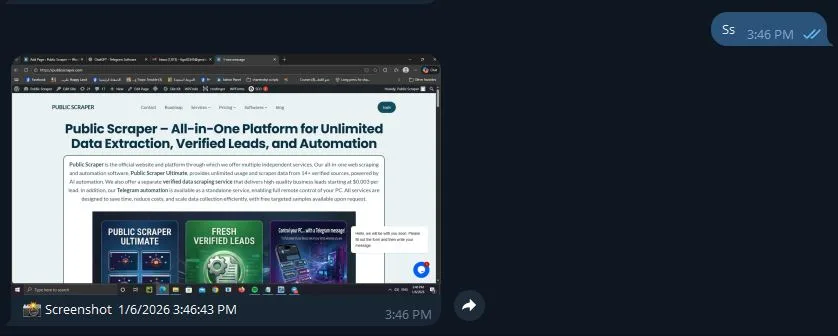
The software captures the current desktop screen and replies in Telegram with the screenshot image. The action is also recorded in command logs, which is important for auditing and security.
To understand the full control model (authorization, allowed commands, and secure deployment), use the pillar reference: control your PC via Telegram securely.
Step-by-step: Take a PC screenshot using Telegram on Windows
1) Install and configure TG Control PC via Telegram
Make sure the software is installed on the Windows PC you want to capture. Complete the required pairing steps so your Telegram chat is authorized to send commands.
Practical setup tips:
- Run the app with the permissions it needs to capture the desktop
- Keep it updated
- Use a dedicated Telegram account or private chat for control
2) Confirm your Telegram chat is authorized
Before using screenshot commands, confirm:
- Only your approved chat or user ID can send commands
- Unknown senders are blocked
- Commands are validated before execution
This is one of the most important parts of safe Telegram-based PC control.
3) Send the screenshot command
In Telegram, send:
ss
TG Control PC via Telegram will respond with a current screenshot of your PC.
4) Verify logging is enabled
For trust and accountability, confirm:
- The
sscommand execution is stored in logs - Logs include timestamp, sender, and action
- Logs are readable and protected from tampering
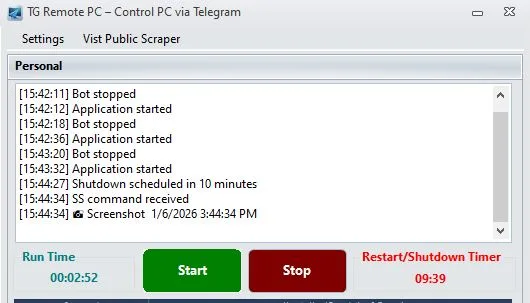
If you are using this in a work environment, logs are non-negotiable.
screenshot PC via Telegram troubleshooting on Windows
Even simple screenshot capture can fail if Windows or session conditions block access. Here are the most common causes and fixes.
Session and permission issues
- Locked screen: Some setups capture a blank or limited view when Windows is locked. Test both locked and unlocked states.
- UAC prompts: Elevated prompts can appear on a secure desktop that normal capture tools cannot read.
- Multiple desktops: Virtual desktops or full-screen apps can affect what is captured.
Fix: Run the controller with appropriate permissions, and test in the exact state you expect to capture (unlocked, locked, admin prompt, etc.).
Antivirus and security software interference
Some endpoint tools flag automation or screen capture behavior.
Fix:
- Add the application to allowlists where appropriate
- Ensure the download source is trusted
- Avoid disabling security entirely. Instead, tune rules precisely
Telegram message delivery delays
If Telegram is slow or connectivity is weak, your response might arrive late.
Fix:
- Confirm the PC has stable internet
- Verify the Telegram bot/account connection
- Retest from a different network
Security and privacy best practices for Telegram screen capture Windows
A screenshot can expose sensitive data: emails, passwords, customer info, internal dashboards. Treat screenshot capture like a privileged action.
Best practices
- Use strict chat allowlisting: Only specific users or a single private chat can issue commands.
- Require an authentication gate: If your software supports PINs, tokens, or device verification, enable it.
- Limit screenshot scope: If there is an option to capture only the active window or a specific monitor, use it where possible.
- Store logs securely: Logs should be write-protected, access-controlled, and backed up.
- Avoid public groups: Never place control commands in group chats.
- Rotate credentials: If tokens, bot keys, or API keys exist, rotate them periodically.
Common mistakes to avoid
- Leaving the control chat open on shared devices
- Capturing screens while password managers or 2FA codes are visible
- Not reviewing logs, which hides misuse until it is too late
- Overusing “admin mode” when normal permission is enough
For broader command safety and secure configuration patterns, reference the pillar guide: secure Telegram-based PC control.
People Also Ask: Telegram PC screenshot tool questions
How do I take a screenshot PC from Telegram?
Send the command ss in your authorized Telegram chat connected to TG Control PC via Telegram. The Windows client captures the current desktop screen and replies with an image. For safety, ensure only approved users can send commands and that every command is recorded in logs.
Is it safe to capture screen via Telegram desktop?
It can be safe if you use strict access controls. Use private chats only, restrict allowed user IDs, and enable logging. Treat screenshots as sensitive data because they may contain passwords or private information. The best setups also support audit logs and credential rotation.
Why is Telegram screen capture Windows returning a black image?
A black screenshot often happens due to permission or session limits, such as UAC secure prompts, locked-screen restrictions, or GPU capture conflicts. Run the controller with proper permissions and test in the same state you are trying to capture. Also check antivirus rules that may block capture behavior.
Can I take PC screenshot using Telegram while I am away from home?
Yes, as long as the Windows PC is powered on, connected to the internet, and the Telegram control channel is active. You send ss, and the system replies with a current screenshot. For reliability, keep the PC awake and ensure the app starts automatically after reboot.
Does the screenshot command get stored in logs?
In a secure implementation, yes. The system should log that ss was issued, when it was executed, and who issued it. Logs are essential for accountability and troubleshooting. If logs are not enabled, you should treat that as a security gap and enable them immediately.
FAQ
Question: What command do I use for a Telegram PC screenshot tool?
Answer: Use the command ss. TG Control PC via Telegram will capture the current Windows screen and send the screenshot back to your Telegram chat.
Question: Can I capture screen via Telegram desktop without full remote access?
Answer: Yes. A screenshot command like ss gives you a single image of the current desktop without starting a full remote desktop session.
Question: How do I keep screenshots private and secure?
Answer: Restrict command access to a private chat, allowlist trusted user IDs, enable command logs, and avoid capturing screens when sensitive data is visible.
Question: Where should command logs be stored?
Answer: Store logs locally on the PC in an access-controlled location, protect them from editing, and back them up if you need audit history.
Question: What should I do if the screenshot does not arrive in Telegram?
Answer: Check the PC internet connection, confirm the controller app is running, verify your chat is authorized, and retry ss. Also review logs for errors or blocked commands.
Conclusion: screenshot PC via Telegram with confidence
Using TG Control PC via Telegram, you can screenshot PC via Telegram in seconds by sending ss and receiving an instant screen capture on Windows. Done correctly, it is faster than remote desktop for quick checks and safer when you enforce strict access controls and keep full command logs. For the complete command set and secure setup workflow, continue with Fast and Secure Way to Control Your PC via Telegram.
Leave a Reply