Telegram File Transfer with PC: Upload from PC to Telegram and Download Back
Telegram file transfer PC workflows are one of the fastest ways to move documents, screenshots, and media between your Windows computer and your phone, without cables or cloud logins. If you already use Telegram to control your PC, file transfer becomes even more useful because you can upload files from the PC to Telegram on demand and automatically download Telegram files back to the computer for quick access.
This guide focuses on Telegram file transfer PC basics using TG Remote PC via Telegram, including the exact commands for upload and download behavior. It also complements the full setup and security approach in the pillar guide: control your PC via Telegram securely and fast.
Why Telegram file transfer PC is useful for remote PC control
File transfer is not just “sending files.” When you control a Windows PC through Telegram, file transfer solves real problems:
- Send a file from your computer to your phone while you are away from the desk
- Grab receipts, PDFs, exports, logs, and screenshots without remote desktop tools
- Save incoming Telegram files on the PC automatically for workflows like printing, editing, or backups
- Move files quickly between devices with one chat thread, without opening email or cloud storage
If you are building a complete remote workflow, combine file transfer with the other controls covered in the main Telegram PC control guide (apps, screenshots, URLs, system commands, and permissions).
How TG Remote PC handles Telegram PC file upload and download
TG Remote PC provides a simple model:
Upload from PC to Telegram
You can upload a file from your PC to Telegram by sending:
upload <number-from-app-command>- or
upload <full-file-path>
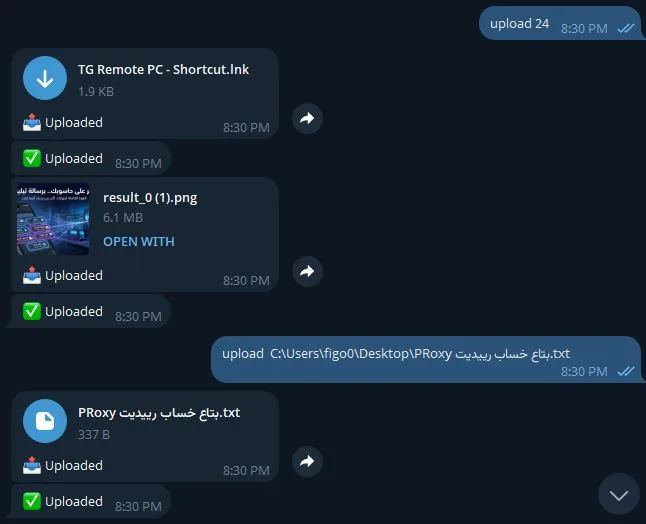
Important: there is no dash. Use upload then a space, then the number or path.
Download Telegram files on PC automatically
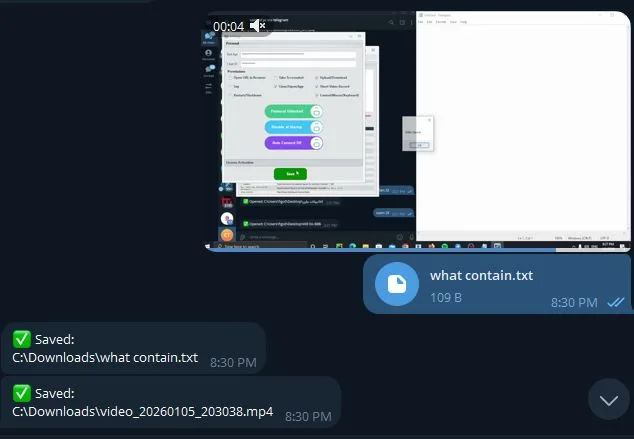
When you send a file in Telegram (any file type), TG Remote PC will automatically save it to:
c://download
To change where Telegram files are saved on the PC, send:
download <new-path>
Example:
download d://tg-downloads
This keeps Telegram desktop file transfer simple and predictable.
Step by step: transfer files from PC to Telegram
Step 1: Choose the file you want to send
Decide whether you want to upload using a shortcut number (from the app command list) or a direct path.
Common examples:
- A PDF on Desktop
- A ZIP export
- A screenshot saved in Pictures
- A text log in a tools folder
Step 2: Upload using the command number (easy mode)
If your TG Remote PC app shows a numbered list of files or presets, you can upload by number:
upload 3
This is useful when you repeatedly send the same items (like a daily report file or a fixed folder export).
Step 3: Upload using a full file path (precise mode)
If you know the exact location, send the full path:
upload c://users//yourname//desktop//report.pdf
Tips for fewer errors:
- Use a full path that points to a real file, not only a folder
- Keep naming simple if possible
- If your path contains spaces, keep it consistent with your TG Remote PC handling (many users prefer folders without spaces)
Step 4: Verify the file arrived in Telegram
You should receive the file in the same Telegram chat with your bot or control session. This confirms:
- Your PC can access the file
- TG Remote PC has permission to read it
- The upload pipeline is working
If you are still setting up the system, follow the security and permission best practices in Fast and Secure Way to Control Your PC via Telegram.
Step by step: download Telegram files on PC and save to a custom folder
Step 1: Send any file to the Telegram chat
You can send:
- Images
- Documents
- ZIP files
- Audio
- Any supported file type
TG Remote PC will detect the incoming attachment and download it automatically.
Step 2: Confirm the default save location
By default, TG Remote PC saves downloaded files to:
c://download
This is useful for beginners because it is consistent and easy to find.
Step 3: Change the download folder (recommended for organization)
If you want a different location, send:
download <new-path>
Example:
download d://downloads//telegram
After setting it once, future Telegram files will be saved there automatically.
Step 4: Use clear folder rules
For reliability and safety:
- Use a folder that your Windows user can write to
- Avoid protected system locations
- Prefer a dedicated folder, not random desktop clutter
Large file transfer using Telegram PC: practical limits and best practices
Telegram is commonly used for sending large files, but performance depends on your connection and PC resources. For smoother Telegram file transfer PC usage:
- Prefer wired or stable Wi-Fi on the PC when transferring large files
- Compress folders into a ZIP before sending
- Use descriptive filenames so you can find items later
- Set a dedicated download folder (for example
d://tg-downloads) to avoid mixing with other files
If your workflow needs frequent file movement plus system controls, keep everything in one secure setup described in the Telegram PC control guide.
Security and privacy for sending files via Telegram PC
Remote file transfer is powerful, so treat it like a security feature, not a convenience trick.
Key risks:
- Someone with access to your Telegram session could request sensitive files
- Saving downloads into a common folder can expose private documents to other local users
- Upload permissions can become dangerous if you allow broad file access
Best practices:
- Use a private bot and keep your Telegram account protected with strong authentication
- Limit TG Remote PC permissions to only what you need (file transfer, screenshots, system commands)
- Use a dedicated download folder with clear access rules
- Avoid uploading system files, browser profile folders, password exports, or credential data
Common mistakes and quick fixes
Upload command does nothing
Check:
- You used
uploadthen a space, then the number or full path - The file exists and the path is correct
- TG Remote PC has permission to read that location
Downloads are not appearing on the PC
Check:
- You actually sent a file attachment (not only text)
- The PC has disk space
- Your save folder exists and is writable
Files save to the wrong place
Fix by setting the folder again:
download c://download- or
download d://tg-downloads
People Also Ask: Telegram file transfer PC
How do I transfer files from PC to Telegram?
To transfer files from PC to Telegram, use TG Remote PC and send upload <number-from-app-command> or upload <full-file-path> in your Telegram chat. The PC will read the file and send it back into the chat as an attachment for easy access on mobile.
How do I download Telegram files on my PC automatically?
TG Remote PC automatically downloads any file you send in Telegram and saves it on your Windows computer. By default, files are saved to c://download. To change the save location, send download <new-path> such as download d://tg-downloads.
Where does Telegram Desktop save downloaded files on Windows?
Telegram Desktop can store downloads in a chosen folder, but TG Remote PC uses its own rule for automation. With TG Remote PC, incoming Telegram files are saved to c://download by default, and you can change it with download <new-path>.
Can I send large files via Telegram on PC?
Yes, you can send large files via Telegram on PC, but transfer speed depends on your connection and device performance. For reliability, compress folders into a ZIP, use stable internet, and save downloads to a dedicated folder so you can locate large items quickly.
How do I save Telegram files to computer in a specific folder?
Set a custom folder using the TG Remote PC command download <new-path>. Example: download d://downloads//telegram. After that, any file sent in Telegram will be automatically downloaded to that folder on the PC.
FAQ
Q: What is the command to upload a file from my PC to Telegram?
A: Use upload <number-from-app-command> or upload <full-file-path>.
Q: Where are Telegram files saved on my PC by TG Remote PC?
A: By default, TG Remote PC saves incoming Telegram files to c://download.
Q: How do I change the Telegram file download path on my PC?
A: Send download <new-path> in Telegram, for example download d://tg-downloads.
Q: Does TG Remote PC download images and documents automatically?
A: Yes. When you send an image or any file type in Telegram, TG Remote PC automatically downloads it to the configured folder.
Q: Is Telegram file transfer secure for personal files?
A: It can be secure if you protect your Telegram account, use a private bot, and restrict permissions. Avoid transferring sensitive credentials and keep downloads in a controlled folder.
Conclusion
Telegram file transfer PC features become significantly more practical when they are connected to a full remote control workflow. With TG Remote PC, you can upload files from PC to Telegram using upload <number-from-app-command> or upload <path>, and you can download Telegram files on PC automatically to c://download or a custom folder using download <new-path>. For a complete setup that combines file transfer with system control, permissions, screenshots, and automation, follow Fast and Secure Way to Control Your PC via Telegram.
Leave a Reply