Remote Mouse and Keyboard Control via Telegram: Control PC Without Remote Desktop
Remote access to a computer has long depended on traditional remote desktop software, which often requires open ports, public IP addresses, or constant screen streaming. These requirements introduce complexity, latency, and security risks. A modern alternative is Telegram mouse keyboard control PC, which allows you to control your computer directly through Telegram without using Remote Desktop at all.
![A smartphone with a Telegram chat screen showing commands like 'lc [number]' and 'rc [number]' connected by a glowing blue line to a desktop computer. On the PC, a glowing hand is using a mouse and keyboard, with a cursor moving on the monitor. The large text at the top reads "CONTROL YOUR PC MOUSE & KEYBOARD USING TELEGRAM](https://publicscraper.com/wp-content/uploads/2026/01/How-to-Remotely-Control-Your-PC-Mouse-Keyboard-Using-a-Telegram-Bot-1024x512.webp)
This support article expands on the core concepts explained in the pillar guide, Fast and Secure Way to Control Your PC via Telegram, by focusing specifically on mouse and keyboard control. It explains how Telegram-based control works, when it is most effective, and why it is safer and lighter than traditional solutions.
What Is Telegram Mouse and Keyboard Control PC?
Telegram mouse keyboard control PC is a remote control method that uses a Telegram bot connected to a local Windows application. The bot receives commands through Telegram chats and translates them into real mouse movements and keyboard input on the PC.
Unlike screen-sharing tools, this method does not stream live video. Instead, it relies on:
- Screenshot-based screen capture
- Grid-based mouse targeting
- Text-driven keyboard input
- Encrypted Telegram bot communication
This makes it ideal for users who want to control a PC via Telegram while avoiding heavy bandwidth usage and unnecessary exposure.
How Remote Mouse Control via Telegram Works
Remote mouse control via Telegram is based on screenshots and numbered grids rather than continuous video streams.
When mouse control starts, the system:
- Takes a screenshot of the current desktop
- Splits the screen into numbered grid sections
- Sends the screenshot to Telegram
- Waits for a command referencing a specific grid number
This approach provides precise control while keeping performance fast, even on slow connections. It is one of the most practical implementations of Telegram remote PC control and is fully explained as part of the broader system in the pillar article on controlling a PC via Telegram.
Telegram Mouse Control Commands
The following commands are used to control the mouse. Each command operates on the numbered grid shown in the screenshot.
lc space number
Left-click on the selected grid number
dlc space number
Double left-click on the selected grid number
rc space number
Right-click on the selected grid number
F space number
Split the selected grid into four smaller sections for higher precision
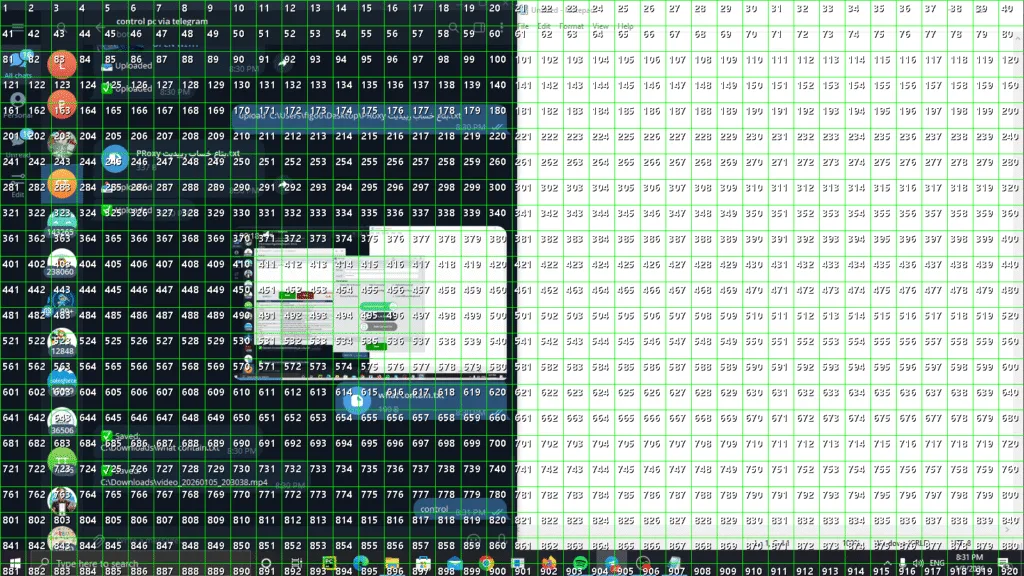
This grid-splitting mechanism allows accurate interaction with small buttons, menus, and interface elements.
How Remote Keyboard Control via Telegram Works
Remote keyboard control via Telegram allows you to type text or send commands directly to your PC through Telegram.
The system supports:
- Writing text into active fields
- Sending shortcut keys
- Automating repetitive keyboard input
key space text
Writes the provided text exactly as if it were typed on the keyboard
This is especially useful for logging into applications, executing commands, or filling out forms remotely without screen sharing.
Why Control PC Without Remote Desktop?
Choosing to control PC without remote desktop offers several advantages:
- No open ports or public IP required
- Lower bandwidth consumption
- Reduced attack surface
- Faster response on unstable networks
This is why many users prefer Telegram automation PC control instead of traditional remote access tools.
Real-World Use Cases
Based on real usage scenarios, Telegram mouse and keyboard control is commonly used for:
- Restarting or managing a home PC while traveling
- Fixing issues on a remote office computer
- Opening applications or websites remotely
- Typing quick commands without full remote sessions
These practical use cases demonstrate why Telegram mouse keyboard control Windows systems are growing in popularity.
Security and Privacy Considerations
Security is a major advantage when using Telegram for PC control, but only if best practices are followed.
Recommended security measures include:
- Restrict bot access to approved Telegram user IDs
- Use strong local authentication on the PC
- Disable unnecessary permissions when not needed
- Monitor command logs regularly
The pillar guide on secure Telegram PC control explains these protections in more detail.
Common Mistakes to Avoid
Users new to Telegram remote control often make avoidable mistakes:
- Leaving mouse control enabled permanently
- Allowing unrestricted bot access
- Ignoring confirmation screenshots
- Running the system with admin rights unnecessarily
Avoiding these mistakes improves both security and stability.
People Also Ask (PAA)
Can I control my mouse and keyboard using Telegram?
Yes. Using a Telegram bot connected to a local PC application, you can control both mouse and keyboard through commands. The system uses screenshots and grid-based interaction for mouse control and text-based input for keyboard actions.
Is Telegram mouse control safe?
Telegram mouse control is safe when access is restricted to trusted users and commands are executed locally. Since no ports or public IPs are exposed, the attack surface is smaller than traditional remote desktop software.
Does Telegram remote PC control work without screen sharing?
Yes. Instead of live screen sharing, Telegram remote PC control uses screenshots and command-based interaction. This significantly reduces bandwidth usage and improves performance on slow networks.
Can I control my PC via Telegram on Windows?
Yes. Most Telegram mouse keyboard control solutions are designed specifically for Windows and integrate directly with system input APIs.
Is Telegram better than Remote Desktop for basic control?
For simple tasks like clicking, typing, opening apps, or restarting a PC, Telegram-based control is often faster and more secure than Remote Desktop.
FAQ
Q: Do I need to open ports to control my PC via Telegram?
A: No. Telegram-based control does not require port forwarding or a public IP address.
Q: Can I type text remotely using Telegram?
A: Yes. Keyboard input is supported using text-based commands sent through Telegram.
Q: Is Telegram mouse keyboard control suitable for slow internet connections?
A: Yes. Screenshot-based interaction uses far less bandwidth than live remote desktop streaming.
Q: Can this replace Remote Desktop completely?
A: For many administrative and quick-control tasks, yes. For full visual workflows, Remote Desktop may still be needed.
Conclusion
Telegram mouse keyboard control PC provides a fast, secure, and lightweight way to control your computer without Remote Desktop. By combining screenshot-based mouse interaction with text-driven keyboard input, it offers precise control while minimizing risk.
To understand how this feature fits into a complete remote control system, read the full guide on how to control your PC via Telegram securely. Together, these articles provide a complete and practical approach to Telegram-based PC control.
Leave a Reply